
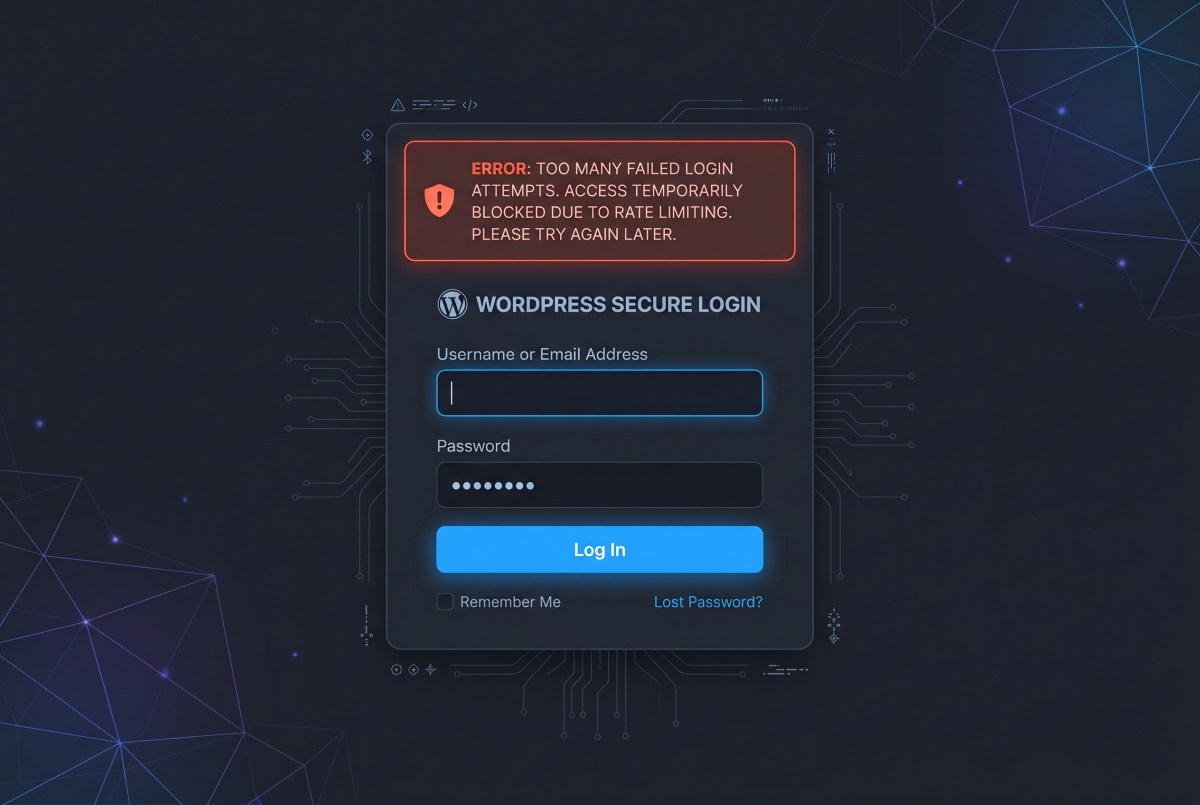
The WordPress login page is the most attacked surface on any WordPress site. By default it sits at the same predictable URL on every installation in the world (/wp-login.php) and every automated bot, credential stuffing tool, and brute force scanner on the internet knows exactly where to find it.
Most WordPress sites are under constant low-level attack. Server logs on a typical site show hundreds or thousands of failed login attempts per day from automated tools probing for weak credentials. Most of these attacks never succeed, but they consume server resources, inflate logs, and represent a persistent exposure that gets worse the moment any user on the site has a weak password.
Hardening the login page does not require a security background or advanced technical knowledge. The measures covered in this post can be applied to most WordPress sites in under an hour and they dramatically reduce the attack surface without affecting the experience of legitimate users.
Change the Default Login URL
The single most effective first step is moving the login page away from its default location. If attackers cannot find the login page, automated tools cannot target it.
By default WordPress login pages live at:
- yourdomain.com/wp-login.php
- yourdomain.com/wp-admin
Both of these redirect to the login page and both are probed constantly by automated scanners.
The plugin WPS Hide Login handles this with no configuration complexity. Install it, set a custom login path of your choosing — something non-obvious like /agency-access or a random string — and the default URLs return a 404. Legitimate users bookmark the new URL and the bots find nothing.
A few caveats worth noting: keep a record of the custom login URL in your password manager. If you forget it and get locked out, you will need FTP or cPanel file access to deactivate the plugin. Also, some caching plugins and security tools need to be configured to exclude the custom login URL from caching rules.
Limit Login Attempts
WordPress allows unlimited login attempts by default. This is what makes brute force attacks viable — an automated tool can try thousands of username and password combinations without being stopped.
Rate limiting login attempts fixes this directly. After a configurable number of failed attempts, the IP address is locked out for a period of time. Most legitimate users never trigger this because they do not fail login three times in a row. Automated tools hit the limit immediately.
Limit Login Attempts Reloaded is the most widely used plugin for this purpose with over two million active installs. Configure it to lock out after three to five failed attempts, with a 20-minute initial lockout that escalates to longer periods for repeat offenders. Enable the option to notify you by email when lockouts occur — this gives you visibility into active attack attempts against a client site.
Cloudflare users have an additional option: Cloudflare’s WAF rules can rate-limit requests to the login URL at the network level before they even reach the WordPress server. This is more efficient and harder to circumvent than a plugin-based approach. If you have already set up Cloudflare for a client site, configuring a rate limiting rule on wp-login.php is a worthwhile addition.
Use Strong Usernames
Login hardening is not only about the password. Usernames are the other half of the credential pair, and predictable usernames make brute force attacks easier.
The username admin is tried first by virtually every automated attack tool because it was the WordPress default for years and remains common on older installations. Any site still using admin as a username should replace it immediately.
The process: create a new administrator account with a proper username, log in with the new account, reassign all content from the old admin account to the new one, then delete the old account. WordPress does not allow direct username changes so this is the correct approach.
Beyond removing admin, avoid usernames that match the site’s brand name, the domain, or any publicly visible display name. WordPress by default shows post authors’ display names publicly — make sure the display name shown on published posts is different from the actual login username. You can set these independently under Users → Your Profile.
Enable Two-Factor Authentication
As covered in our previous post on password best practices, two-factor authentication is one of the most effective controls available for any login system. On WordPress, it deserves specific attention at the login hardening level.
WP 2FA is the most flexible plugin for this purpose. It supports authenticator app codes, email-based verification, and backup codes. Crucially, it allows you to enforce 2FA for specific roles — require it for administrators and editors while leaving it optional for subscribers. Set a grace period of a few days for existing users to enroll, after which they are locked out until they complete setup.
For sites where all administrators are technical users comfortable with authenticator apps, requiring TOTP codes via Google Authenticator, Authy, or 1Password is the recommended configuration. For sites where the client manages their own admin account and is less technical, email-based verification is more practical and still significantly better than no second factor at all.
Add HTTP Basic Authentication to wp-login.php
For sites where only a small number of known users ever need to log in, adding a second layer of authentication directly at the server level is a highly effective measure. HTTP basic authentication presents a browser-level username and password prompt before the WordPress login page even loads, meaning automated tools that do not handle HTTP auth never reach WordPress at all.
This is configured at the server level rather than through a plugin. On a cPanel hosting environment it can be done through the Directory Privacy tool in cPanel, pointed at the wp-login.php file. On an Nginx server it requires a location block configuration. On an Apache server it uses an .htaccess directive.
This approach works best for sites with a fixed set of administrators who access the login page from known locations. It is less practical for membership sites or any site where users self-register, since every user would encounter the HTTP auth prompt.
Block XML-RPC If You Do Not Need It
WordPress includes an XML-RPC interface at xmlrpc.php that was originally designed to allow remote publishing and mobile app access. Most modern WordPress sites do not use it, but it remains enabled by default and is frequently exploited as an alternative login attack vector. XML-RPC allows multiple authentication attempts in a single request, which means rate limiting plugins that target wp-login.php do not protect against XML-RPC attacks.
If your site does not use the Jetpack plugin, the WordPress mobile app, or any remote publishing workflow that depends on XML-RPC, disable it entirely. The plugin Disable XML-RPC handles this with no configuration. Alternatively, a Cloudflare WAF rule blocking requests to xmlrpc.php achieves the same result at the network level.
To verify whether a site uses XML-RPC before disabling it, check with the site owner or developer and search the installed plugins list for anything that mentions remote publishing or XML-RPC support.
Implement a Web Application Firewall
A Web Application Firewall sitting in front of WordPress provides login protection at a higher level than any individual plugin. Cloudflare’s free WAF tier includes basic bot protection and rate limiting. Cloudflare Pro adds more sophisticated managed rulesets specifically targeting WordPress attack patterns including login page abuse.
For clients already using Cloudflare — which DivyWeb recommends as a baseline for all production sites — enabling the WordPress managed ruleset under Security → WAF → Managed Rules adds a meaningful layer of protection with no ongoing maintenance burden. The rules are updated by Cloudflare as new attack patterns emerge, which means the protection improves over time without requiring action on your part.
Wordfence is the most widely used WordPress-specific WAF plugin for sites not using Cloudflare. The free tier includes a firewall and malware scanner with rules that update on a 30-day delay. Wordfence Premium removes that delay and adds real-time IP reputation blocking. For high-value sites, the premium tier is worth the investment.
Disable the Login Page for Unused User Registration
If the site does not allow public user registration, make sure the registration form is disabled. Open Settings → General and confirm that the Anyone Can Register checkbox is unchecked. Leaving registration open on a site that does not need it creates unnecessary exposure and invites spam account creation.
Similarly, if the site uses WooCommerce or a membership plugin that requires user registration, confirm that the registration form includes a CAPTCHA or honeypot field. Automated tools will fill out and submit registration forms without one, creating junk accounts and potentially exploiting weaknesses in the registration flow.
Monitor Login Activity
Hardening the login page reduces attack surface but does not eliminate it entirely. Monitoring gives you visibility into what is happening and early warning when something suspicious occurs.
Simple History logs all login attempts, successful and failed, along with the username used, the IP address, and the timestamp. It also logs plugin activations, settings changes, and content modifications — making it a useful general audit trail for any WordPress site.
Wordfence includes login monitoring as part of its security dashboard, with email alerts for failed login attempts, successful logins from new locations, and administrator-level activity.
For agency-managed client sites, having this monitoring in place means you can demonstrate to a client exactly what happened on their site if a security incident occurs. That documentation is valuable both for remediation and for client confidence.
Putting It All Together
A fully hardened WordPress login setup looks like this:
The default login URL has been moved to a custom path. Login attempts are rate limited with a lockout after three to five failures. The username admin has been removed and all usernames are non-obvious. Two-factor authentication is enforced for all administrator and editor accounts. XML-RPC is disabled if not in use. A WAF — either Cloudflare or Wordfence — is active and monitoring traffic. Login activity is logged and alerts are configured for suspicious events.
None of these measures individually is a silver bullet. Together they make a WordPress login page significantly harder to compromise than the default configuration, and dramatically harder than the average WordPress site that has received no attention at all.
If In Doubt, Consult An Expert At DivyWeb
WordPress login hardening is one of the highest-leverage security investments available for any site. The work is relatively quick, the plugins involved are well-maintained, and the protection is meaningful and lasting.
This post is the third in our WordPress security series. If you missed the earlier posts, start with our guides on modern password best practices and auditing WordPress user roles.
If you want a professional security review of a client’s WordPress site covering login hardening, user roles, plugin vulnerabilities, and more, get in touch. Security audits are one of our most requested services.