
One of the most overlooked security vulnerabilities on WordPress sites is not a plugin exploit or an outdated theme. It is an old admin account that nobody thought to remove.
Former employees, freelancers, developers from a previous agency, clients who needed temporary access — every WordPress site accumulates users over time. Most of them are never cleaned up. And every unnecessary administrator account sitting on a live site is an open door waiting to be walked through.
This post walks through how to audit WordPress user roles, identify accounts that should not be there, and remove or downgrade them properly. It takes less than 30 minutes on most sites and is one of the highest-value security tasks an agency can perform for a client.
Understanding WordPress User Roles
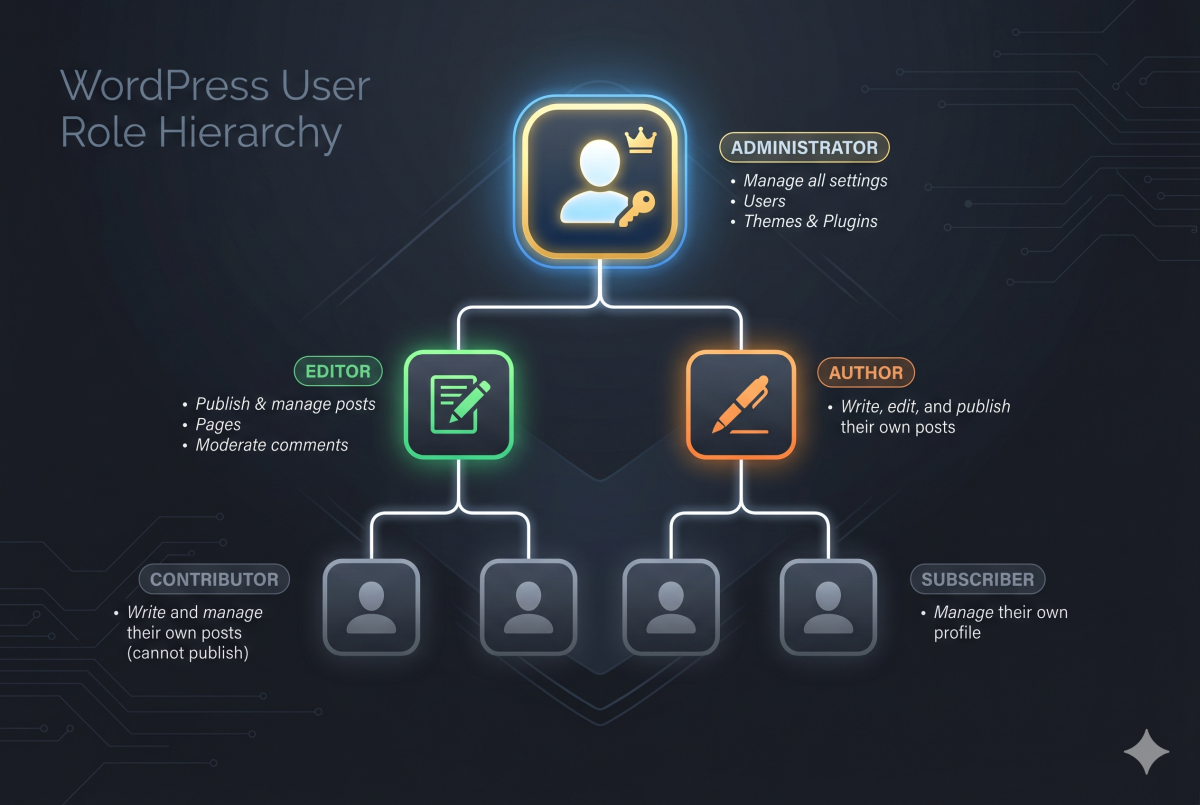
Before auditing, it helps to know what each role actually permits. WordPress ships with five default roles, and the gap between them matters significantly from a security perspective.
Administrator has complete control over the site. They can install and delete plugins and themes, create and delete users, modify any content, and access all settings. This is the role that causes serious damage when compromised.
Editor can publish, edit, and delete any content including posts written by other users. They cannot touch plugins, themes, or site settings.
Author can publish and manage their own posts only. No access to other users’ content or site settings.
Contributor can write and edit their own posts but cannot publish them. Posts require editor or admin approval.
Subscriber can only manage their own profile. No content access whatsoever.
The principle of least privilege applies directly here. Every user should have the lowest role that still allows them to do their job. A blogger who only writes posts does not need editor access. A client who wants to read draft content does not need contributor access if subscriber works. And almost nobody outside of the technical team should be an administrator.
Step 1: Pull the Full User List
Start by getting a complete picture of every user on the site.
In the WordPress admin go to Users → All Users. By default this shows all users across all roles. Switch the view to show all users at once by setting Screen Options to the maximum number of rows if the site has more than 20 users.
Look at the list with fresh eyes and ask: do I recognize every name on this list? For each user you cannot immediately identify, note them for further investigation before taking any action.
For sites with a large number of users, such as membership sites, WooCommerce stores, learning management systems, filter by role rather than reviewing the entire list. The critical roles to audit are Administrator and Editor. Subscriber-level accounts on a public site are lower risk and can be reviewed separately.
Step 2: Audit Every Administrator Account
Click Administrator in the role filter at the top of the Users screen to see only admin accounts. This is the most important list on the page.
For each administrator, ask these questions:
Is this person still associated with the site? Former employees, past agency partners, and one-time developers have no ongoing reason to hold admin access.
When did this account last log in? WordPress does not display last login date natively. Install the plugin WP Last Login or Simple History to surface this data. An administrator account that has not logged in for six months or more is a strong candidate for removal or demotion.
Does this person actually need administrator access? A content writer who was given admin access for convenience years ago probably only needs editor or author level access now.
Is the email address on the account still valid? Accounts tied to personal email addresses from former contractors, or to email domains that no longer exist, are particularly risky. Password reset emails go to that address — if someone else controls it, they can take over the account.
Is the username “admin”? The default admin username is the first thing brute force tools try. Any account with the username admin should be renamed or replaced. WordPress does not allow username changes natively, so the process is to create a new administrator account with a proper username, reassign all content from the old account, and delete the old one.
Step 3: Check for Dormant Editor Accounts
After clearing up the administrator list, move to editors. Apply the same criteria — do they still work with the site, when did they last log in, and do they genuinely need editor-level access or would author suffice.
Editor is a powerful role. An editor can delete any post or page on the site, including content they did not write. On a client site with years of published content, a compromised editor account can cause significant damage even without touching settings or plugins.
Step 4: Deal With Accounts Appropriately
Once you have identified accounts that need attention, handle them in one of three ways:
Delete the account if the person has no ongoing relationship with the site and no content assigned to them. WordPress will ask you what to do with their content — reassign it to an active user rather than deleting it, unless the content itself should go.
Demote the account if the person still needs some level of access but not their current role. Change an unnecessary administrator to editor, or an editor who only writes their own posts to author. Do this from the Users screen by checking the user, selecting the new role from the Change Role dropdown, and clicking Change.
Reset the password on any account you are keeping but have doubts about. If a former contractor might still know the password, resetting it closes that exposure even if you are keeping the account for content attribution purposes.
Do not simply leave accounts inactive. An inactive account with a weak password is still a valid attack surface. Brute force attacks do not check whether an account has logged in recently.
Step 5: Enforce Strong Passwords and Two-Factor Authentication Going Forward
Removing stale accounts addresses the past. Enforcing standards going forward prevents the same problem from recurring.
Install WP 2FA to require two-factor authentication for administrator and editor accounts. The plugin supports authenticator apps and email-based verification and allows you to set a grace period after which users must enroll or lose access.
Install Password Policy Manager for WordPress or use the built-in strong password enforcement to prevent users from setting weak passwords when they next update their credentials.
Consider setting a policy for your agency: every site you manage gets a user audit at onboarding and annually thereafter. Document who has access, at what role level, and why. When a project ends and a developer or contractor no longer needs access, remove it the same day.
Step 6: Check for Unrecognized Plugin or Integration Accounts
Some WordPress plugins and integrations create their own user accounts during setup. Jetpack, certain backup plugins, and some managed hosting platforms do this. These accounts are usually legitimate but worth verifying.
Look for accounts with unusual usernames that do not correspond to a real person — things like wpsupport, jetpack_backup, or plugin-specific usernames. Verify that each one corresponds to an active and intentional integration. If you cannot identify the origin of an account, treat it as suspicious until proven otherwise.
What to Document After the Audit
Once the audit is complete, keep a record of what you found and what you changed. For agency clients this documentation serves two purposes: it demonstrates the value of the work you performed, and it creates a baseline for the next audit.
A simple record covering the date of the audit, the number of administrator accounts before and after, any accounts removed or demoted and the reason, and the current two-factor authentication status of admin accounts is sufficient. It does not need to be elaborate to be useful.
How Often to Run This Audit
For most sites, an annual user audit is a reasonable baseline. Sites with higher turnover — agencies with rotating project teams, membership sites with evolving admin staff, ecommerce operations with seasonal support staff — should audit more frequently, ideally quarterly.
The best time to run an audit is at the natural end of a project or engagement. When your agency finishes a build and hands a site off to a client, removing your own temporary accounts as part of the handoff process sets a professional standard and reduces your own exposure if the client’s site is later compromised.
Security Is Not Always Glamorous
WordPress user role audits are not glamorous work but they are effective. Removing unnecessary administrator accounts, demoting over-privileged users, and enforcing two-factor authentication going forward addresses one of the most common and preventable attack vectors on WordPress sites.
If you manage client sites and want a professional security review that covers user roles, plugin vulnerabilities, file permissions, and more, get in touch. A WordPress security audit is one of the most practical investments an agency can make on behalf of a client.